

Inspector: pick an element, copy its path
Writing a first test starts with one question: what is the path of that button? The Inspector answers it the way browser DevTools would - point at the element, click, copy - instead of reading get_object_tree() output.
Start it
vericue-inspector is a desktop application, shipped in the package's bin/ beside the launcher. It needs no browser, no Python and no Qt installation: the package carries the Inspector's own Qt in lib/vericue-inspector/, found through the binary's rpath, so unpacking the archive and running the binary is enough. Started with no arguments - by double-clicking it, say - it asks which application to inspect.
That private Qt is deliberately not exported into the environment, so the application the Inspector launches keeps loading its Qt. The Runtime injected into your process is always built against the Qt your application uses.
Those Qt libraries are third-party open-source software, used under the LGPLv3, and the package says so: licenses/qt/ carries the licence text, a manifest of the exact version and checksums, our source offer for that build, and instructions for running the Inspector against your own Qt instead. See vericue.dev/opensource.
Start your unmodified application and inspect it in one command:
vericue inspect ./your-qt-appThat is the front door; it starts the application through the same path as vericue run and opens the Inspector on it. Arguments for your application go after --, exactly as they do for vericue run, and reach it unchanged:
vericue inspect ./your-qt-app -- --config prod.ini --verbose
``` The tool itself is
`vericue-inspector`, if you would rather call it directly:

```bash
vericue-inspector --run ./your-qt-app
Or attach to an application that already has the Runtime inside it:
vericue-inspector --port 4242
vericue-inspector --endpoint /run/user/1000/vericue/vericue-4213.sock
When you cannot point at the window
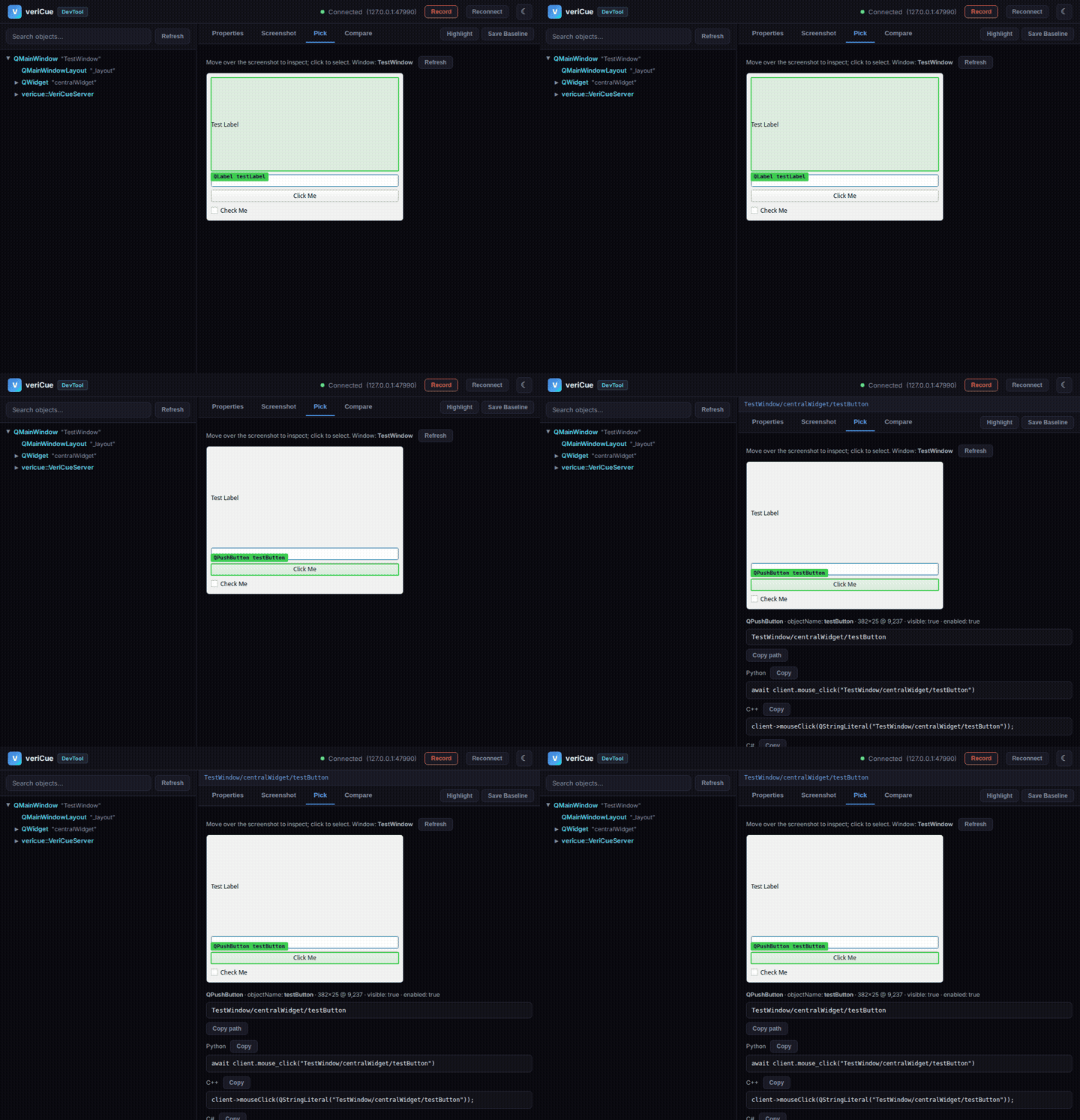
Pointing needs the application on your screen. When it runs on another host, in a container or on a device, pick on a captured image instead - Pick on screenshot in the same toolbar, or the web DevTool (tools/devtool/, needs pip install aiohttp): python -m tools.devtool --run ./your-qt-app, then open http://localhost:8080 and use its Pick tab. Both resolve the point with the same object_at command, so they agree with the native picker, and both build their action list from the element's own get_meta - the DevTool lists one entry per property, signal and no-argument method, without the kind-of-element judgement (text input, scrollable, item view) the desktop Inspector adds.
Pick an element
Press Pick element (Ctrl+Shift+C), then move the pointer over your running application. The element under the cursor is outlined in the application itself, exactly as browser DevTools outlines a DOM node - and the click that chooses it is swallowed, so pointing at a Delete button selects it instead of pressing it. Esc cancels.
The outline is drawn by the Runtime inside the application, so it follows the real widget through scrolling, resizing and layout changes; there is no second copy of your UI to get out of date.
Dialogs, tool windows and popups pick like any other window: the Runtime asks the window system which window is on top at the pointer, so pointing into a dialog picks in the dialog, not in the main window behind it. The Window selector names the windows you would point at - the main window and its dialogs - and the screenshot view follows a pick into whichever window it landed in.
Everything is still a window to Qt
Menus, tooltips and a QQuickView embedded in a widget container are top-level windows as far as Qt is concerned, and list_windows still reports them - automation may well want to drive a menu. Each entry now carries a windowType and an embedded flag, which is what lets the Inspector show a short, honest list without the protocol hiding anything.
- Hover outlines the element in the application and shows its path in the status bar.
- Click selects it: the canonical path, class name,
objectName, geometry andvisible/enabledstate appear below, and the tree view jumps to the node. - Copy path or pick an action from the list and copy a ready-to-run line:
await client.mouse_click("MainWindow/loginPage/loginButton")C++ and C# snippets are generated alongside the Python one.
What this element can do
The action list is not a fixed menu. It is built from the element's own meta-object, read with get_meta, so it offers what this object actually supports:
- Click on anything that takes input, Right-click only when the element's
contextMenuPolicysays a context menu exists, Type text on a text input rather than on any widget whosetexthappens to be writable. - Read
checked, Settext, Wait fortoggled()- one entry per property and per signal the class declares, with the value it holds right now. - Model info / Read a cell for item views, Screenshot and Highlight for anything visible.
Members declared by the element's own class come first, and Qt's QObject boilerplate is left out - so an application widget's playbackStarted() is above QWidget::repaint() rather than buried under it. A disabled element says so instead of offering input commands the Runtime would refuse with widget_not_enabled, and a property with no NOTIFY signal is flagged, because wait_for_property can only poll it.
The Properties panel lists every property with its current value and whether it can be read, written or waited on; double-clicking a row copies the line that reads it. Both panels are dock widgets - the object tree too - so the toolbar buttons hide what you are not using, and every divider is draggable.
The path shown is the same canonical form every command accepts - find_object, mouse_click, get_properties - because the picker asks the Runtime itself: the object_at command hit-tests the point against the live object tree, top-most visible element first, for Widgets and QML alike.
Unnamed elements
An element with no objectName still gets a working path (ClassName#N segments), but it is positional - it can shift when siblings appear. The details panel says so when it applies; giving the element an objectName in your source is the durable fix.
When you cannot change the application, identify the element by what it is instead, scoped to its container:
button = await client.find_object(class_name="QPushButton",
                                  properties={"text": "Apply"},
                                  root="settingsDialog")
await client.mouse_click(button["path"])
root matters: without it the search covers the whole application, so "the button labelled OK" has as many answers as you have dialogs. With it, class plus a property plus the container survives a sibling being inserted - the positional path does not.
The commands underneath
Nothing here is private to the Inspector. The capability list is get_meta, which returns the class chain, the signals, the invokable methods and the properties, each tagged with the class that declared it:
meta = await client.send_request("get_meta", {"path": "MainWindow/okButton"})
# {"inherits": ["QPushButton", "QAbstractButton", "QWidget", "QObject"],
#  "signals": [{"name": "clicked", "signature": "clicked(bool)", "depth": 1, ...}],
#  "methods": [...], "properties": [{"name": "text", "writable": true,
#                                    "notifiable": false, "declaredBy": "QAbstractButton"}]}
Native picking is pick_element, which arms the Runtime to watch its own pointer and pushes element_hovered and element_picked events; cancel_pick disarms it. Hit testing - for both the native and the screenshot picker - is object_at:
found = await client.object_at(x, y, window="MainWindow")
# {"path": ..., "className": ..., "objectName": ...,
#  "window": ..., "visible": ..., "enabled": ..., "geometry": {...}}
Coordinates are in the window's own coordinate system - the same frame a screenshot of that window uses, which is what makes picking on a screenshot exact.